tcpdump
tcpdump is a command-line network protocol analyzer. It is popular, lightweight–meaning it uses little memory and has a low CPU usage–and uses the open-source libpcap library. tcpdump is text based, meaning all commands in tcpdump are executed in the terminal. It can also be installed on other Unix-based operating systems, such as macOS®. It is preinstalled on many Linux distributions.
tcpdump provides a brief packet analysis and converts key information about network traffic into formats easily read by humans. It prints information about each packet directly into your terminal. tcpdump also displays the source IP address, destination IP addresses, and the port numbers being used in the communications.
The Tcpdump tool and its libpcap library are written in C and C++ and were released for Unix-like systems in the late 1980s or early 1990s. Consequently, they are very stable and offer optimal speed. The libpcap library is the foundation for various other networking tools today. Moreover, it was ported to MS Windows as winpcap.
Interpreting output#
tcpdump prints the output of the command as the sniffed packets in the command line, and optionally to a log file, after a command is executed. The output of a packet capture contains many pieces of important information about the network traffic.
Some information you receive from a packet capture includes:
- Timestamp: The output begins with the timestamp, formatted as hours, minutes, seconds, and fractions of a second.
- Source IP: The packet’s origin is provided by its source IP address.
- Source port: This port number is where the packet originated.
- Destination IP: The destination IP address is where the packet is being transmitted to.
- Destination port: This port number is where the packet is being transmitted to.
Note: By default, tcpdump will attempt to resolve host addresses to hostnames. It’ll also replace port numbers with commonly associated services that use these ports.
Common uses#
tcpdump and other network protocol analyzers are commonly used to capture and view network communications and to collect statistics about the network, such as troubleshooting network performance issues. They can also be used to:
- Establish a baseline for network traffic patterns and network utilization metrics.
- Detect and identify malicious traffic
- Create customized alerts to send the right notifications when network issues or security threats arise.
- Locate unauthorized instant messaging (IM), traffic, or wireless access points.
However, attackers can also use network protocol analyzers maliciously to gain information about a specific network. For example, attackers can capture data packets that contain sensitive information, such as account usernames and passwords. As a cybersecurity analyst, It’s important to understand the purpose and uses of network protocol analyzers.
Usage#
sudo tcpdump [-i interface] [option(s)] [expression(s)]eg: sudo tcpdump -i eth0 -s 0 -w packetdump.pcap
Options#
- The -i command option allows you to specify the interface. If not specified or or
-i any, tcpdump will capture all traffic on all interfaces. - The -s command option specifies the length of the snapshot for each packet. Setting this option to 0 sets it to the default of 262144.
- The -w command option is used to write the result of the tcpdump command to a file. Adding the extension .pcap ensures that operating systems and applications will be able to read the file. All recorded traffic will be printed to the file packetdump.pcap.
- Using the -r flag, you can read a packet capture file by specifying the file name as a parameter.
- -v : for verbosity. By default, tcpdump will not print out all of a packet’s information. There are three levels of verbosity you can use depending on how much packet information you want tcpdump to print out: -v, -vv, and -vvv.
- The -c option stands for count. This option lets you control how many packets tcpdump will capture. For example, specifying -c 1 will only print out one single packet, whereas -c 10 prints out 10 packets.
- -n : Using the -n flag disables the automatic mapping of numbers to names and is considered to be best practice when sniffing or analyzing traffic. Using -n will not resolve hostnames, whereas -nn will not resolve both hostnames or ports. By default, tcpdump will perform name resolution. This means that tcpdump automatically converts IP addresses to names. It will also resolve ports to commonly associated services that use these ports. This can be problematic because tcpdump isn’t always accurate in name resolution.
| Command | Explanation |
|---|---|
tcpdump -i INTERFACE | Captures packets on a specific network interface |
tcpdump -w FILE | Writes captured packets to a file |
tcpdump -r FILE | Reads captured packets from a file |
tcpdump -c COUNT | Captures a specific number of packets |
tcpdump -n | Don’t resolve IP addresses |
tcpdump -nn | Don’t resolve IP addresses and don’t resolve protocol numbers |
tcpdump -v | Verbose display; verbosity can be increased with -vv and -vvv |
Filter Expressions#
You can also use filter expressions in tcpdump commands.
- you can use filter expressions to isolate network packets.
- You can also use boolean operators like
and, or, notto further filter network traffic for specific IP addresses, ports, and more. - eg: sudo tcpdump -r packetcapture.pcap -n ‘ip and port 80’
- You can also use parentheses to group and prioritize different expressions.
| Command | Explanation |
|---|---|
tcpdump host IP or tcpdump host HOSTNAME | Filters packets by IP address or hostname |
tcpdump src host IP or | Filters packets by a specific source host |
tcpdump dst host IP | Filters packets by a specific destination host |
tcpdump port PORT_NUMBER | Filters packets by port number |
tcpdump src port PORT_NUMBER | Filters packets by the specified source port number |
tcpdump dst port PORT_NUMBER | Filters packets by the specified destination port number |
tcpdump PROTOCOL | Filters packets by protocol; examples include ip, ip6, and icmp |
We can limit the displayed packets to those smaller or larger than a certain length:
-
greater LENGTH: Filters packets that have a length greater than or equal to the specified length -
less LENGTH: Filters packets that have a length less than or equal to the specified length -
You can use the -D flag to list the network interfaces available on a system. OR In the
ifconfigoutput, find the interface name that corresponds to the Ethernet adapter (usually eth0).
Filter packets based on header byte#
Using pcap-filter, Tcpdump allows you to refer to the contents of any byte in the header using the following syntax proto[expr:size], where:
protorefers to the protocol. For example,arp,ether,icmp,ip,ip6,tcp, andudprefer to ARP, Ethernet, ICMP, IPv4, IPv6, TCP, and UDP respectively.exprindicates the byte offset, where0refers to the first byte.sizeindicates the number of bytes that interest us, which can be one, two, or four. It is optional and is one by default.
To better understand this, consider the following two examples from the pcap-filter manual page
ether[0] & 1 != 0takes the first byte in the Ethernet header and the decimal number 1 (i.e.,0000 0001in binary) and applies the&(the And binary operation). It will return true if the result is not equal to the number 0 (i.e.,0000 0000). The purpose of this filter is to show packets sent to a multicast address. A multicast Ethernet address is a particular address that identifies a group of devices intended to receive the same data.ip[0] & 0xf != 5takes the first byte in the IP header and compares it with the hexadecimal number F (i.e.,0000 1111in binary). It will return true if the result is not equal to the (decimal) number 5 (i.e.,0000 0101in binary). The purpose of this filter is to catch all IP packets with options.
Filtering TCP packets based on the set TCP flags.
You can use tcp[tcpflags] to refer to the TCP flags field. The following TCP flags are available to compare with:
tcp-synTCP SYN (Synchronize)tcp-ackTCP ACK (Acknowledge)tcp-finTCP FIN (Finish)tcp-rstTCP RST (Reset)tcp-pushTCP Push
Based on the above, we can write:
tcpdump "tcp[tcpflags] == tcp-syn"to capture TCP packets with only the SYN (Synchronize) flag set, while all the other flags are unset.tcpdump "tcp[tcpflags] & tcp-syn != 0"to capture TCP packets with at least the SYN (Synchronize) flag set.tcpdump "tcp[tcpflags] & (tcp-syn|tcp-ack) != 0"to capture TCP packets with at least the SYN (Synchronize) or ACK (Acknowledge) flags set.
Displaying Packets#
Tcpdump is a rich program with many options to customize how the packets are printed and displayed. We have selected to cover the following five options:
-q: Quick output; print brief packet information-e: Print the link-level header (show MAC address)-A: Show packet data in ASCII-xx: Show packet data in hexadecimal format, referred to as hex-X: Show packet headers and data in hex and ASCII
Interpreting output#
eg: sudo tcpdump -i any -v -c 1
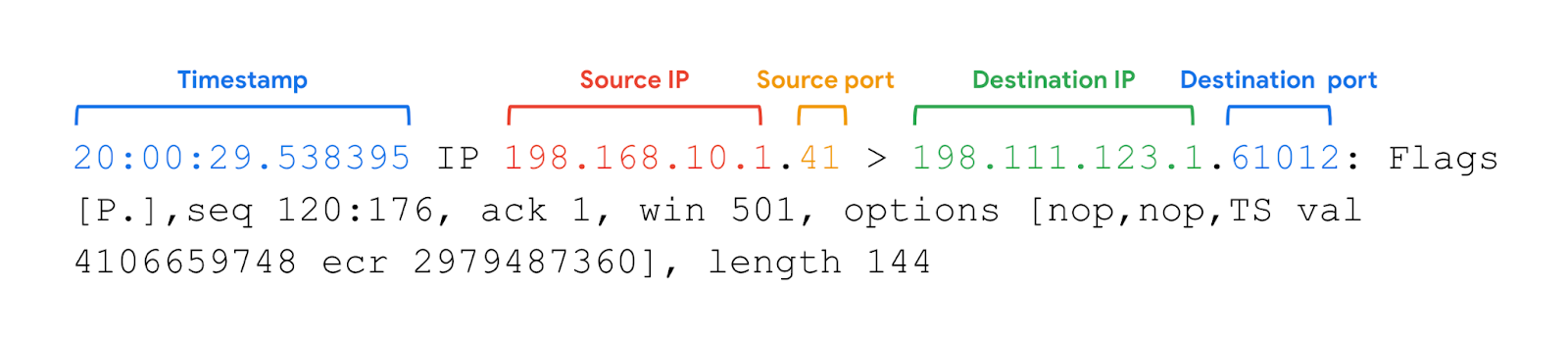
- Timestamp: The output begins with the timestamp, which starts with hours, minutes, seconds, and fractions of a second.
- Source IP: The packet’s origin is provided by its source IP address.
- Source port: This port number is where the packet originated.
- Destination IP: The destination IP address is where the packet is being transmitted to.
- Destination port: This port number is where the packet is being transmitted to.