SQL
SQL (Structured Query Language)#
SQL is a programming language used to create, interact with, and request information from a database.
A query is a request for data from a database table or a combination of tables.
Nearly all relational databases rely on some version of SQL to query data. The different versions of SQL only have slight differences in their structure, like where to place quotation marks.
A log is a record of events that occur within an organization’s systems.Security logs are often very large and hard to process. There are millions of data points, and it’s very time consuming to find what you need.
SQL can search through millions of data points to extract relevant rows of data using one query that takes seconds to run.
Accessing SQL#
There are many interfaces for accessing SQL and many different versions of SQL. One way to access SQL is through the Linux command line.
To access SQL from Linux, you need to type in a command for the version of SQL that you want to use. For example, if you want to access SQLite, you can enter the command sqlite3 in the command line.
Basic SQL query#
There are two essential keywords in any SQL query: SELECT and FROM. You will use these keywords every time you want to query a SQL database. Using them together helps SQL identify what data you need from a database and the table you are returning it from.
SELECT customerid, city, country
FROM customers;The following are some of the most common SQL statements (commands):
- SELECT: Used to obtain data from a database
- UPDATE: Used to update data in a database
- DELETE: Used to delete data from a database
- INSERT INTO: Used to insert new data into a database
- CREATE DATABASE: Used to create a new database
- ALTER DATABASE: Used to modify a database
- CREATE TABLE: Used to create a new table
- ALTER TABLE: Used to modify a table
- DROP TABLE: Used to delete a table
- CREATE INDEX: Used to create an index or a search key element
- DROP INDEX: Used to delete an index
SELECT#
The SELECT keyword indicates which columns to return.
You can also select multiple columns by separating them with a comma.
If you want to return all columns in a table, you can follow the SELECT keyword with an asterisk (* ). The first line in the query will be SELECT *.
FROM#
The SELECT keyword always comes with the FROM keyword. FROM indicates which table to query. To use the FROM keyword, you should write it after the SELECT keyword, often on a new line, and follow it with the name of the table you’re querying.
ORDER BY#
Database tables are often very complicated, and this is where other SQL keywords come in handy. ORDER BY is an important keyword for organizing the data you extract from a table.
ORDER BY sequences the records returned by a query based on a specified column or columns. This can be in either ascending or descending order.
Sorting in ascending order#
To use the ORDER BY keyword, write it at the end of the query and specify a column to base the sort on.
The ORDER BY keyword sorts the records based on the column specified after this keyword. By default the sequence will be in ascending order. This means
- if you choose a column containing numeric data, it sorts the output from the smallest to largest.
- if the column contains alphabetic characters it orders the records from the beginning of the alphabet to the end.
SELECT customerid, city, country
FROM customers
ORDER BY city;Sorting in descending order#
You can also use the ORDER BY with the DESC keyword to sort in descending order. The DESC keyword is short for “descending” and tells SQL to sort numbers from largest to smallest, or alphabetically from Z to A. This can be done by following ORDER BY with the DESC keyword.
SELECT customerid, city, country
FROM customers
ORDER BY city DESC;Sorting based on multiple columns#
You can also choose multiple columns to order by. For example, you might first choose the country and then the city column. SQL then sorts the output by country, and for rows with the same country, it sorts them based on city.
WHERE#
To create a filter in SQL, you need to use the keyword WHERE. WHERE indicates the condition for a filter.
We can use the equals sign (=) operator to set this condition.
SELECT firstname, lastname, title, email
FROM employees
WHERE title = 'IT Staff';Filtering for patterns#
You can also filter based on a pattern.
you can identify entries that start or end with a certain character or characters. Filtering for a pattern requires incorporating two more elements into your WHERE clause:
- a wildcard
- the LIKE operator
Wildcards#
A wildcard is a special character that can be substituted with any other character. Two of the most useful wildcards are the percentage sign (%) and the underscore (_):
- The percentage sign substitutes for any number of other characters.
- The underscore symbol only substitutes for one other character.
These wildcards can be placed after a string, before a string, or in both locations depending on the pattern you’re filtering for.
The following table includes these wildcards applied to the string ‘a’ and examples of what each pattern would return.
| Pattern | Results that could be returned |
|---|---|
| ‘a%’ | apple123, art, a |
| ‘a_’ | as, an, a7 |
| ‘a__’ | ant, add, a1c |
| ‘%a’ | pizza, Z6ra, a |
| ‘_a’ | ma, 1a, Ha |
| ‘%a%’ | Again, back, a |
| ‘a’ | Car, ban, ea7 |
LIKE#
To apply wildcards to the filter, you need to use the LIKE operator instead of an equals sign (=). LIKE is used with WHERE to search for a pattern in a column.
SELECT lastname, firstname, title, email
FROM employees
WHERE title LIKE 'IT%';Comparison operators#
In SQL, filtering numeric and date and time data often involves operators. You can use the following operators in your filters to make sure you return only the rows you need:
| operator | use |
|---|---|
< | less than |
> | greater than |
= | equal to |
<= | less than or equal to |
>= | greater than or equal to |
<> | not equal to |
Note: You can also use != as an alternative operator for not equal to.
These comparison operators are used in the WHERE clause at the end of a query.
SELECT firstname, lastname, birthdate
FROM employees
WHERE birthdate > '1970-01-01';This query returns the first and last names of employees born after, but not on, ‘1970-01-01’ (or January 1, 1970). If you were to use the >= operator instead, the results would also include results on exactly ‘1970-01-01’.
ie, the > operator is exclusive and the >= operator is inclusive.
BETWEEN#
Another operator used for numeric data as well as date and time data is the BETWEEN operator. BETWEEN filters for numbers or dates within a range. For example, if you want to find the first and last names of all employees hired between January 1, 2002 and January 1, 2003, you can use the BETWEEN operator as follows:
SELECT firstname, lastname, hiredate
FROM employees
WHERE hiredate BETWEEN '2002-01-01' AND '2003-01-01';Note: The BETWEEN operator is inclusive.
Logical operators#
AND#
AND is used to filter on two conditions. AND specifies that both conditions must be met simultaneously.
SELECT firstname, lastname, email, country, supportrepid
FROM customers
WHERE supportrepid = 5 AND country = 'USA';OR#
The OR operator also connects two conditions, but OR specifies that either condition can be met. It returns results where the first condition, the second condition, or both are met.
SELECT firstname, lastname, email, country
FROM customers
WHERE country = 'Canada' OR country = 'USA';NOT#
Unlike the previous two operators, the NOT operator only works on a single condition, and not on multiple ones. The NOT operator negates a condition. This means that SQL returns all records that don’t match the condition specified in the query.
SELECT firstname, lastname, email, country
FROM customers
WHERE NOT country = 'USA';Another way of finding values that are not equal to a certain value is by using the <> operator or the != operator. For example, WHERE country <> ‘USA’ and WHERE country != ‘USA’ are the same filters as WHERE NOT country = ‘USA’.
Combining logical operators#
Logical operators can be combined in filters.
SELECT firstname, lastname, email, country
FROM customers
WHERE NOT country = 'Canada' AND NOT country = 'USA';JOIN#
to join data from multiple tables when these tables share a common column.
Inner joins#
The first type of join that you might perform is an inner join. INNER JOIN returns rows matching on a specified column that exists in more than one table.
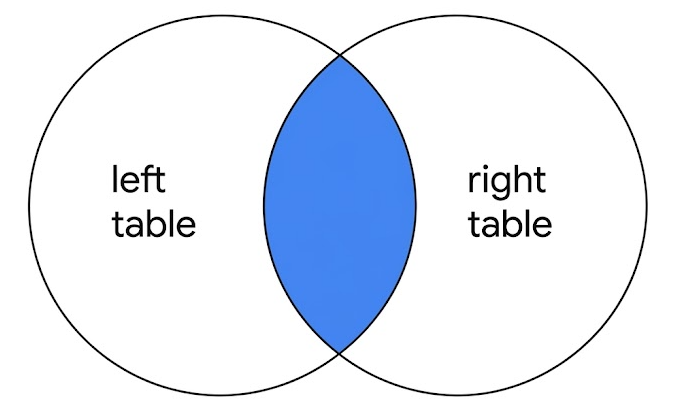
It only returns the rows where there is a match, but like other types of joins, it returns all specified columns from all joined tables.
For example, if the query joins two tables with SELECT * , all columns in both of the tables are returned.
Note: If a column exists in both of the tables, it is returned twice when SELECT * is used.
The syntax of an inner join#
To write a query using INNER JOIN, you can use the following syntax:
SELECT *
FROM employees
INNER JOIN machines ON employees.device_id = machines.device_id;You must specify the two tables to join by including the first or left table after FROM and the second or right table after INNER JOIN.
After the name of the right table, use the ON keyword and the = operator to indicate the column you are joining the tables on. It’s important that you specify both the table and column names in this portion of the join by placing a period (.) between the table and the column.
In addition to selecting all columns, you can select only certain columns. For example, if you only want the join to return the username, operating_system and device_id columns, you can write this query:
SELECT username, operating_system, employees.device_id
FROM  employees
INNER JOIN machines ON employees.device_id = machines.device_id;Note: In the example query, username and operating_system only appear in one of the two tables, so they are written with just the column name. On the other hand, because device_id appears in both tables, it’s necessary to indicate which one to return by specifying both the table and column name (employees.device_id).
Outer joins#
Outer joins expand what is returned from a join. Each type of outer join returns all rows from either one table or both tables.
Left joins#
When joining two tables, LEFT JOIN returns all the records of the first table, but only returns rows of the second table that match on a specified column.
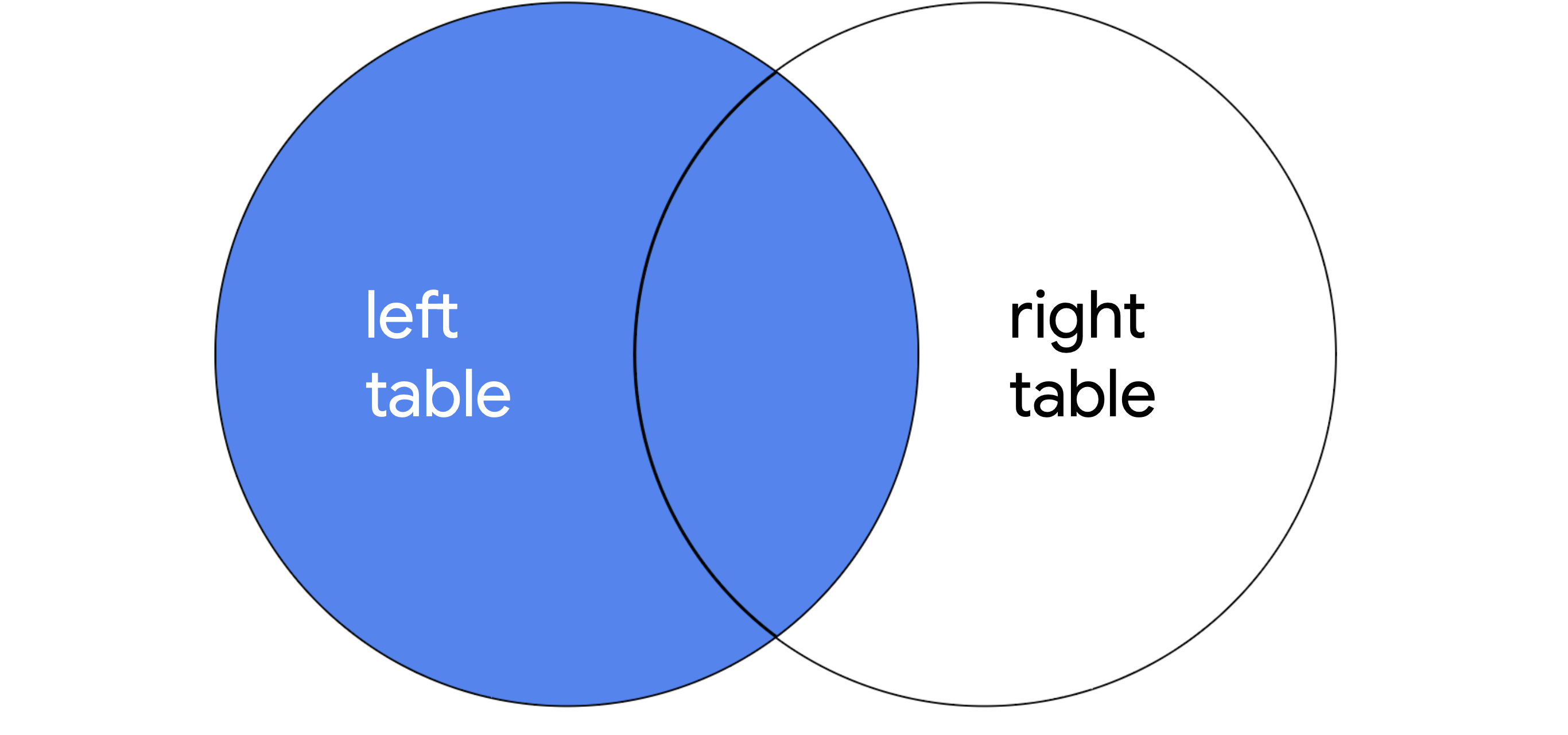
The syntax for using LEFT JOIN is demonstrated in the following query:
SELECT *
FROM employees
LEFT JOIN machines ON employees.device_id = machines.device_id;As with all joins, you should specify the first or left table as the table that comes after FROM and the second or right table as the table that comes after LEFT JOIN. In the example query, because employees is the left table, all of its records are returned. Only records that match on the device_id column are returned from the right table, machines.
Right joins#
When joining two tables, RIGHT JOIN returns all of the records of the second table, but only returns rows from the first table that match on a specified column.
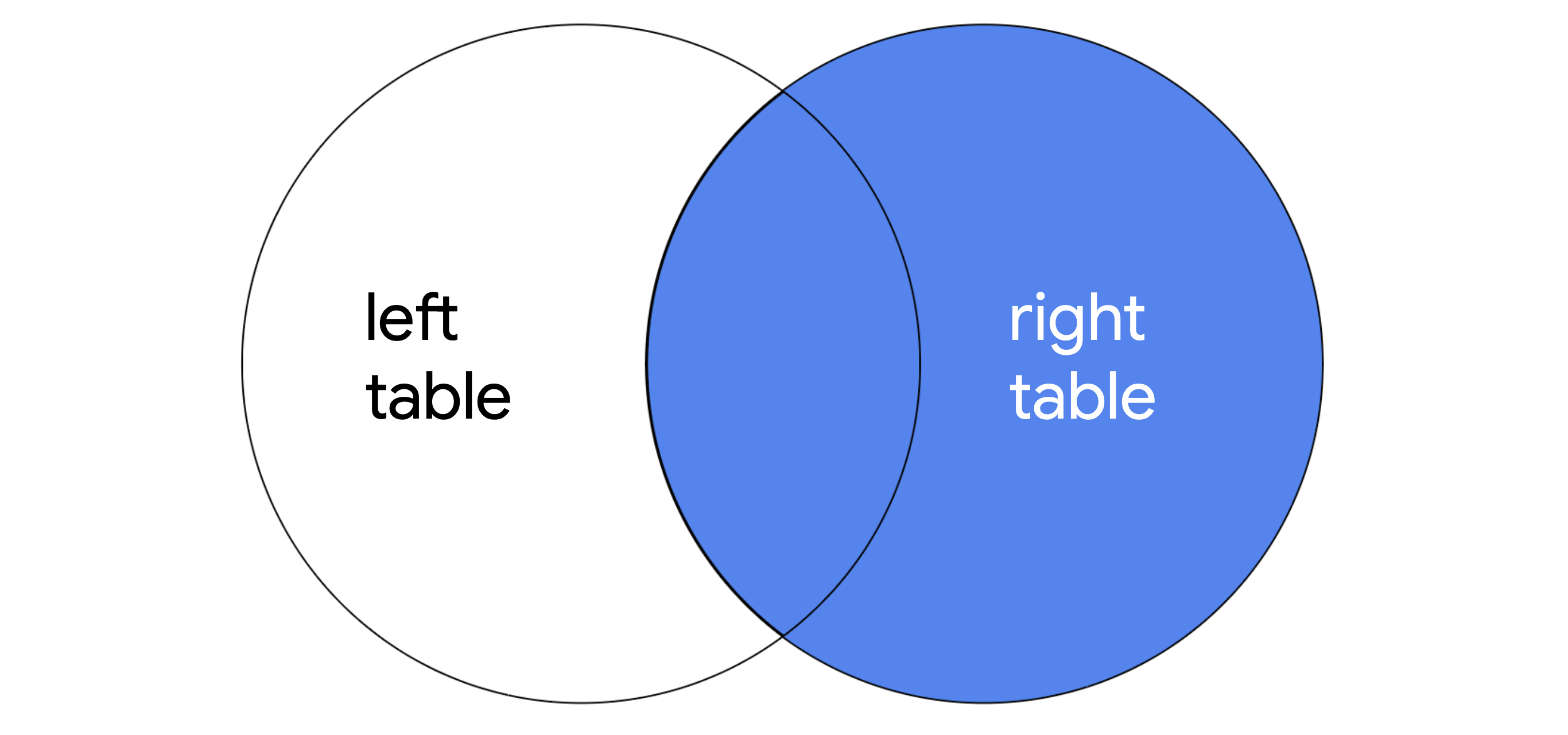
The following query demonstrates the syntax for RIGHT JOIN:
SELECT *
FROM employees
RIGHT JOIN machines ON employees.device_id = machines.device_id;RIGHT JOIN has the same syntax as LEFT JOIN, with the only difference being the keyword RIGHT JOIN instructs SQL to produce different output. The query returns all records from machines, which is the second or right table. Only matching records are returned from employees, which is the first or left table.
Note: You can use LEFT JOIN and RIGHT JOIN and return the exact same results if you use the tables in reverse order. The following RIGHT JOIN query returns the exact same result as the LEFT JOIN query demonstrated in the previous section:
SELECT *
FROM machines
RIGHT JOIN employees ON employees.device_id = machines.device_id;All that you have to do is switch the order of the tables that appear before and after the keyword used for the join, and you will have swapped the left and right tables.
Full outer joins #
FULL OUTER JOIN returns all records from both tables. You can think of it as a way of completely merging two tables.
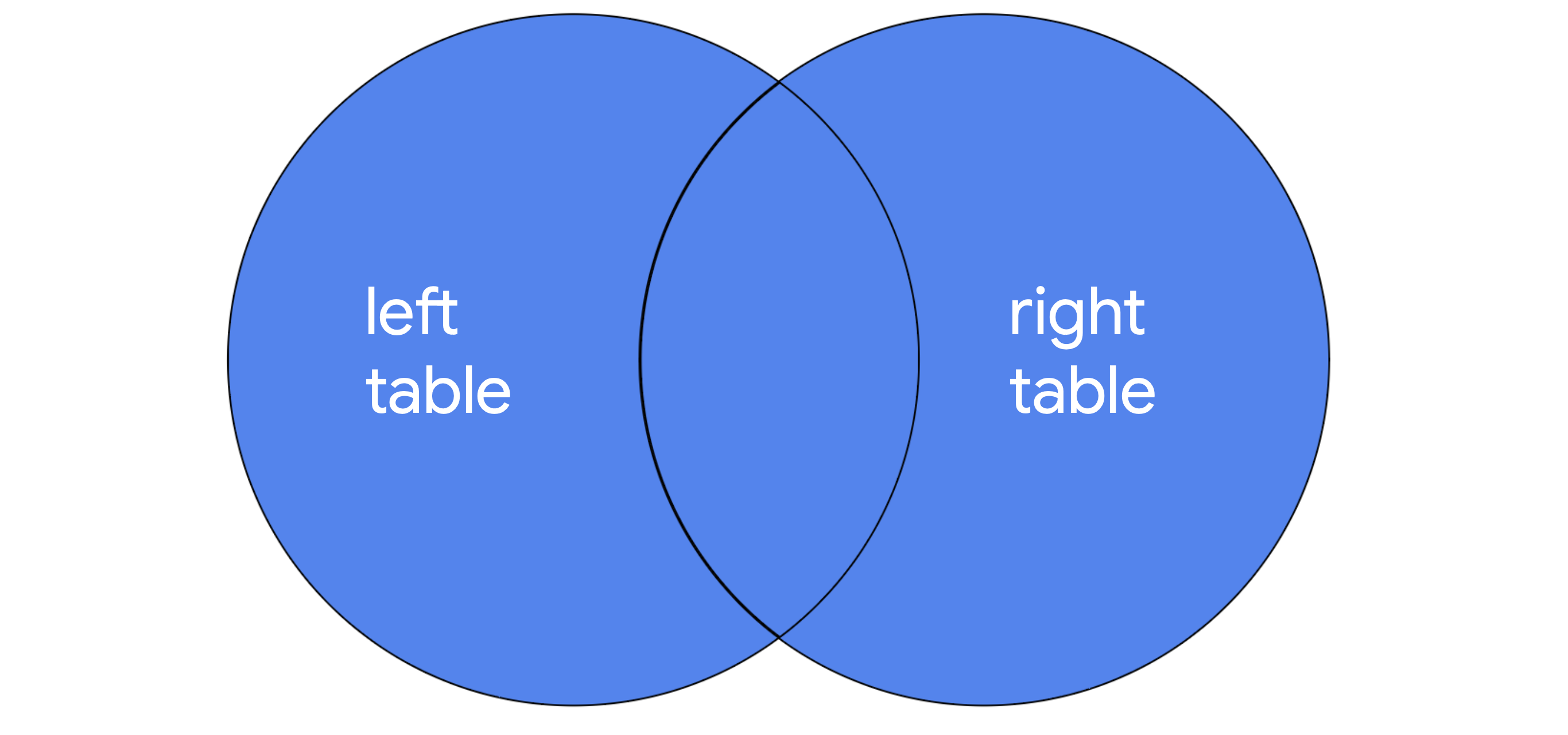
You can review the syntax for using FULL OUTER JOIN in the following query:
SELECT *
FROM employees
FULL OUTER JOIN machines ON employees.device_id = machines.device_id;The results of a FULL OUTER JOIN query include all records from both tables. Similar to INNER JOIN, the order of tables does not change the results of the query.
Aggregate functions#
In SQL, aggregate functions are functions that perform a calculation over multiple data points and return the result of the calculation. The actual data is not returned.
There are various aggregate functions that perform different calculations:
- COUNT returns a single number that represents the number of rows returned from your query.
- AVG returns a single number that represents the average of the numerical data in a column.
- SUM returns a single number that represents the sum of the numerical data in a column.
Aggregate function syntax#
To use an aggregate function, place the keyword for it after the SELECT keyword, and then in parentheses, indicate the column you want to perform the calculation on.
For example, when working with the customers table, you can use aggregate functions to summarize important information about the table. If you want to find out how many customers there are in total, you can use the COUNT function on any column, and SQL will return the total number of records, excluding NULL values. You can run this query and explore its output:
SELECT COUNT(firstname)
FROM customers;The result is a table with one column titled COUNT(firstname) and one row that indicates the count.
If you want to find the number of customers from a specific country, you can add a filter to your query:
SELECT COUNT(firstname)
FROM customers
WHERE country = 'USA';With this filter, the count is lower because it only includes the records where the country column contains a value of ‘USA’.
There are a lot of other aggregate functions in SQL. The syntax of placing them after SELECT is exactly the same as the COUNT function.