Windows
Windows Command Line#
The Windows Command Line (cmd.exe) is a text-based interface used to interact directly with your operating system, letting you manage files, run programs, and automate repetitive tasks without a graphical user interface (GUI).
Essential Commands#
| Command | Action |
|---|---|
cd | Change Directory (navigates folders) |
dir | Directory (lists files and subfolders) |
dir \s | Search for a file |
mkdir | Make Directory (creates a new folder) |
copy | copy files from one location to another. |
move | move files from one location to another. |
del | Delete a file |
cls | Clears the screen of all previous output |
help | Provides help information for a specific command |
Advanced Commands#
| Command | Action |
|---|---|
set | Print path |
ver | Print OS version |
whoami | Print current logged in account username |
hostname | Print hostname |
systeminfo | Print system information such as OS information, system details, processor and memory. |
ipconfig | Check network information. Use /all for more information |
ping | Ping a target |
tracert | Traces the network route traversed to reach the target |
nslookup | Looks up a host or domain and returns its IP address |
netstat | Displays current network connections and listening ports. Use netstat -abon detailed information. |
type | Dump the contents of the text file on the screen |
more | Displays a single page content. Use Spacebar to move page by page (flip the page) or Enter to move by one line. |
tasklist | List the running processes |
taskkill | Terminate a task (taskkill /PID [pid]) |
chkdsk | Checks the file system and disk volumes for errors and bad sectors |
driverquery | Displays a list of installed device drivers |
sfc /scannow | Scans system files for corruption and repairs them if possible |
shutdown | Shutdown a system. (/s:shutdown, /r:Restart , a:Abort a scheduled shutdown) |
NTFS#
The file system used in modern versions of Windows is the New Technology File System or simply NTFS ↗ .
- Before NTFS, there was FAT16/FAT32 (File Allocation Table) and HPFS (High Performance File System).
- NTFS is known as a journaling file system. In case of a failure, the file system can automatically repair the folders/files on disk using information stored in a log file. This function is not possible with FAT.
NTFS addresses many of the limitations of the previous file systems; such as:
- Supports files larger than 4GB
- Set specific permissions on folders and files
- Folder and file compression
- Encryption ( Encryption File System ↗ or EFS )
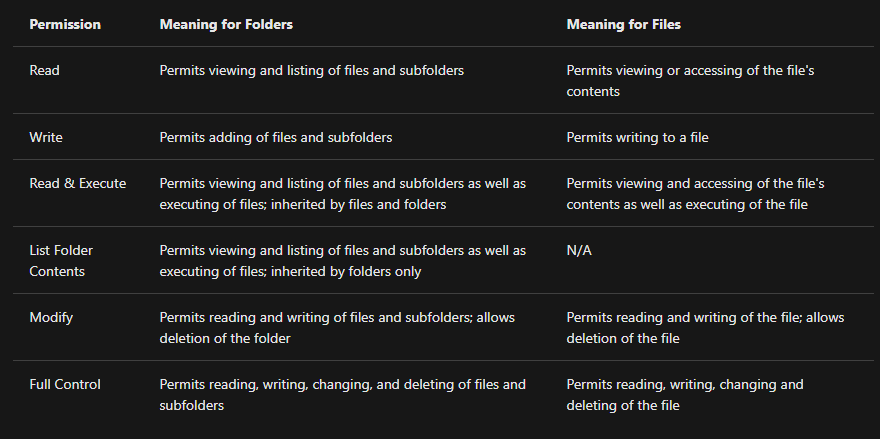
On NTFS volumes, you can set permissions that grant or deny access to files and folders.
The permissions are:
- Full control
- Modify
- Read & Execute
- List folder contents
- Read
- Write
Another feature of NTFS is Alternate Data Streams ( ADS ).
- Alternate Data Streams (ADS) is a file attribute specific to Windows NTFS (New Technology File System).
- Every file has at least one default data stream (
$DATA), and ADS allows files to contain more than one stream of data. Natively Window Explorer ↗ doesn’t display ADS to the user. There are 3rd party executables that can be used to view this data, but Powershell ↗ gives you the ability to view ADS for files.
From a security perspective, malware writers have used ADS to hide data.
Windows Folder#
The Windows folder ( C:\Windows ) is traditionally known as the folder which contains the Windows operating system.
- The folder doesn’t have to reside in the C drive necessarily. It can reside in any other drive and technically can reside in a different folder.
- The system environment variable for the Windows directory is
%windir%. - The System32 folder holds the important files that are critical for the operating system.
UAC#
User accounts can be one of two types on a typical local Windows system: Administrator & Standard User.
The user account type will determine what actions the user can perform on that specific Windows system.
- An Administrator can make changes to the system: add users, delete users, modify groups, modify settings on the system, etc.
- A Standard User can only make changes to folders/files attributed to the user & can’t perform system-level changes, such as install programs.
There are several ways to determine which user accounts exist on the system.
- One way is to click the
Start Menuand typeOther User. A shortcut toSystem Settings > Other usersshould appear. - Another way to access this information, and then some, is using Local User and Group Management.
Right-click on the Start Menu and click Run. Typelusrmgr.msc
A user doesn’t need to run with high (elevated) privileges on the system to run tasks that don’t require such privileges, such as surfing the Internet, working on a Word document, etc. This elevated privilege increases the risk of system compromise because it makes it easier for malware to infect the system. Consequently, since the user account can make changes to the system, the malware would run in the context of the logged-in user.
To protect the local user with such privileges, Microsoft introduced User Account Control (UAC). This concept was first introduced with the short-lived Windows Vista ↗ and continued with versions of Windows that followed.
Note : UAC (by default) doesn’t apply for the built-in local administrator account.
How does UAC work? When a user with an account type of administrator logs into a system, the current session doesn’t run with elevated permissions. When an operation requiring higher-level privileges needs to execute, the user will be prompted to confirm if they permit the operation to run.
MS Windows Passwords#
MS Windows passwords are hashed using NTLM, a variant of MD4. They’re visually identical to MD4 and MD5 hashes.
On MS Windows, password hashes are stored in the SAM (Security Accounts Manager). MS Windows tries to prevent normal users from dumping them, but tools like mimikatz exist to circumvent MS Windows security. Notably, the hashes found there are split into NT hashes and LM hashes.