Burpsuite
Burp Suite is the industry-standard software toolkit used by ethical hackers, penetration testers, and bug bounty hunters to security-test web applications.
Developed by PortSwigger, it acts as a web proxy that sits between your browser and the target server, allowing you to intercept, inspect, and modify HTTP/HTTPS traffic in real-time.
Burp Suite functions as a Swiss Army knife for AppSec with several built-in tools:
- Proxy: It allows you to intercept and edit requests on the fly before they reach the web server, or alter the server’s responses before they render in your browser.
- Repeater: Used to capture a request and manually resend it over and over. This is perfect for testing how an application responds to different inputs or for refining an exploit.
- Intruder: An automated tool for fuzzing, brute-forcing, and carrying out customized attacks. It injects lists of payloads (e.g., wordlists or XSS scripts) into designated parameters.
- Decoder: Decoder offers a valuable service for data transformation. It can decode captured information or encode payloads before sending them to the target.
- Comparer: It enables the comparison of two pieces of data at either the word or byte level. While not exclusive to Burp Suite, the ability to send potentially large data segments directly to a comparison tool with a single keyboard shortcut significantly accelerates the process.
- Sequencer: Analyzes the randomness of session tokens to ensure authentication and CSRF cookies cannot be easily guessed.
- Extender: Allows you to load external plugins (or “BApps”) from the BApp Store to customize and extend the suite’s capabilities.
- The Java codebase of Burp Suite facilitates the development of extensions to enhance the framework’s functionality. These extensions can be written in Java, Python (using the Java Jython interpreter), or Ruby (using the Java JRuby interpreter).
- While certain extensions may require a professional license for integration, there are still a considerable number of extensions available for Burp Community.
- For instance, the Logger++ module can extend the built-in logging functionality of Burp Suite.
- Scanner: An automated vulnerability scanner that crawls applications to find common flaws like SQL Injection, Cross-Site Scripting (XSS), and security misconfigurations. (Available in Professional and Enterprise editions only).
A web proxy is a piece of software that is typically installed in the attacker’s system to intercept, modify, or delete transactions between a web browser and a web application.
Editions Available
- Community Edition: The free, stripped-down version. It includes essential manual tools but lacks automated scanners and advanced features.
- Professional Edition: The paid, industry-standard version. It includes the automated vulnerability scanner, advanced automation tools, and Burp AI features.
- Enterprise Edition: Designed for organizations. It provides scalable, CI/CD-integrated automated scanning for an entire enterprise’s infrastructure.
Setup#
- You need to configure your browser to route its traffic through Burp Suite’s local proxy (usually
127.0.0.1on port8080).- Firefox/Preferences/General/Network Proxy/Settings/Manual proxy configuration -> http proxy: 127.0.0.1:8080 / ✅ use this proxy server for all protocols.
- You must also install Burp Suite’s custom CA (Certificate Authority) certificate in your browser, which allows the software to safely decrypt and inspect encrypted HTTPS traffic without throwing SSL/TLS errors
- go to https://burp ↗ and download the CA certificate and install in firefox.(preferences/privacy and security/Certificates/view/import/select cert )
Configuring the proxy using the FoxyProxy extension.
- Install FoxyProxy
- Firefox: FoxyProxy extension ↗
- Chrome: FoxyProxy Extension ↗
- Create Burp Proxy Configuration: In the FoxyProxy options pop-up, click the Options button. This will open a new browser tab with the FoxyProxy configurations. Click the Add button to create a new proxy configuration.
- Add Proxy Details: On the “Add Proxy” page, fill in the following values:
- Title:
Burp(or any preferred name) - Proxy IP:
127.0.0.1 - Port:
8080
- Title:
- Save Configuration: Click Save to save the Burp Proxy configuration.
- Activate Proxy Configuration: Click on the FoxyProxy icon at the top-right of the Firefox browser and select the
Burpconfiguration. This will redirect your browser traffic through127.0.0.1:8080. Note that Burp Suite must be running for your browser to make requests when this configuration is activated.
Burp Suite also includes a built-in Chromium browser that is pre-configured to use the proxy without any of the modifications we just had to do.
- To start the Burp Browser, click the
Open Browserbutton in the proxy tab or the 🌐 button in the top right corner of the burp window. A Chromium window will pop up, and any requests made in this browser will go through the proxy.
if you are running Burp Suite on Linux as the root user, you may encounter an error preventing the Burp Browser from starting due to the inability to create a sandbox environment.- Smart option: Create a new user and run Burp Suite under a low-privilege account to allow the Burp Browser to run without issues.
- Easy option: Go to
Settings -> Tools -> Burp's browserand check theAllow Burp's browser to run without a sandboxoption. Enabling this option will allow the browser to start without a sandbox. However, please be aware that this option is disabled by default for security reasons. If you choose to enable it, exercise caution, as compromising the browser could grant an attacker access to your entire machine. In the training environment of the AttackBox, this is unlikely to be a significant issue, but use it responsibly.
Usage#
Once you launch Burp Suite and accept the terms and conditions, you will be prompted to select a project type. In Burp Suite Community, the options are limited, and you can simply click Next to proceed.
The next window allows you to choose the configuration for Burp Suite. It is generally recommended to keep the default settings, which are suitable for most situations. Click Start Burp to open the main Burp Suite interface.
The Burp Dashboard is divided into four quadrants, as labelled in counter-clockwise order starting from the top left:
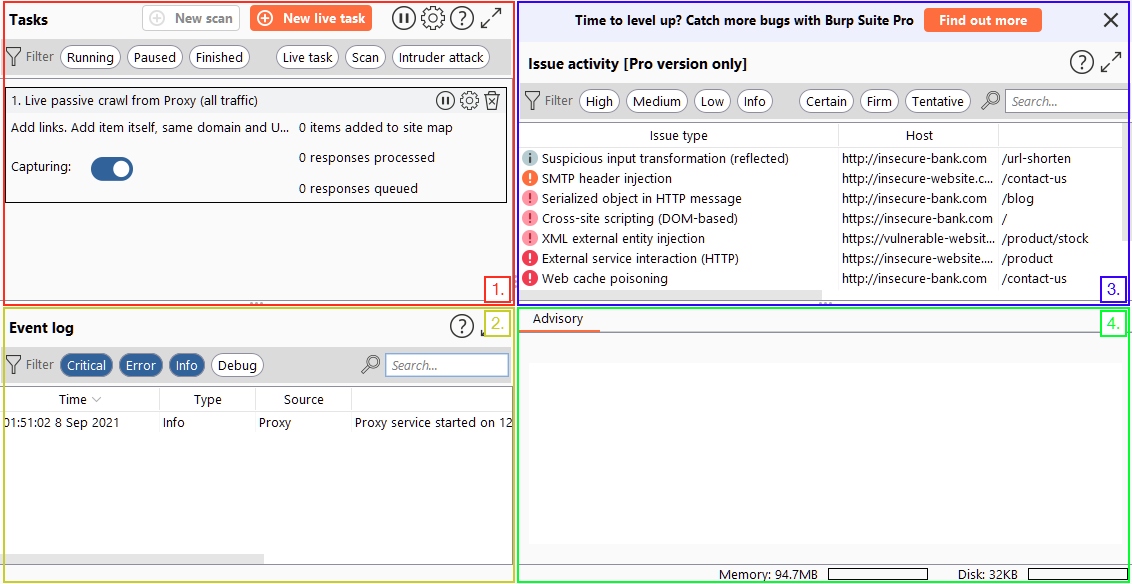
- Tasks: The Tasks menu allows you to define background tasks that Burp Suite will perform while you use the application. In Burp Suite Community, the default “Live Passive Crawl” task, which automatically logs the pages visited, is sufficient for our purposes in this module. Burp Suite Professional offers additional features like on-demand scans.
- Event log: The Event log provides information about the actions performed by Burp Suite, such as starting the proxy, as well as details about connections made through Burp.
- Issue Activity: This section is specific to Burp Suite Professional. It displays the vulnerabilities identified by the automated scanner, ranked by severity and filterable based on the certainty of the vulnerability.
- Advisory: The Advisory section provides more detailed information about the identified vulnerabilities, including references and suggested remediations. This information can be exported into a report. In Burp Suite Community, this section may not show any vulnerabilities.
In Burp Suite, the default navigation is primarily done through the top menu bars, which allow you to switch between modules and access various sub-tabs within each module. The sub-tabs appear in a second menu bar directly below the main menu bar.
- Module Selection: The top row of the menu bar displays the available modules in Burp Suite. You can click on each module to switch between them. For example, the Burp Proxy module is selected in the image below.

- Sub-Tabs: If a selected module has multiple sub-tabs, they can be accessed through the second menu bar that appears directly below the main menu bar. These sub-tabs often contain module-specific settings and options. For example, in the image above, the Proxy Intercept sub-tab is selected within the Burp Proxy module.
- Detaching Tabs: If you prefer to view multiple tabs separately, you can detach them into separate windows. To do this, go to the Window option in the application menu above the Module Selection bar. From there, choose the “Detach” option, and the selected tab will open in a separate window. The detached tabs can be reattached using the same method.
For configuring Burp Suite, there are two types of settings: Global settings (also known as User settings) and Project settings.
- Global Settings: These settings affect the entire Burp Suite installation and are applied every time you start the application. They provide a baseline configuration for your Burp Suite environment.
- Project Settings: These settings are specific to the current project and apply only during the session. However, please note that Burp Suite Community Edition does not support saving projects, so any project-specific options will be lost when you close Burp.
Target#
The Target tab in Burp Suite provides more than just control over the scope of our testing. It consists of three sub-tabs:
- Site map: This sub-tab allows us to map out the web applications we are targeting in a tree structure. Every page that we visit while the proxy is active will be displayed on the site map. This feature enables us to automatically generate a site map by simply browsing the web application. In Burp Suite Professional, we can also use the site map to perform automated crawling of the target, exploring links between pages and mapping out as much of the site as possible. Even with Burp Suite Community, we can still utilize the site map to accumulate data during our initial enumeration steps. It is particularly useful for mapping out APIs, as any API endpoints accessed by the web application will be captured in the site map.
- Issue definitions: Although Burp Community does not include the full vulnerability scanning functionality available in Burp Suite Professional, we still have access to a list of all the vulnerabilities that the scanner looks for. The Issue definitions section provides an extensive list of web vulnerabilities, complete with descriptions and references. This resource can be valuable for referencing vulnerabilities in reports or assisting in describing a particular vulnerability that may have been identified during manual testing.
- Scope settings: This setting allows us to control the target scope in Burp Suite. It enables us to include or exclude specific domains/IPs to define the scope of our testing. By managing the scope, we can focus on the web applications we are specifically targeting and avoid capturing unnecessary traffic.
- To target only the specific web application(s) we want to test, right-click on our target from the list and selectAdd To Scope. Burp will then prompt us to choose whether we want to stop logging anything that is not in scope, and in most cases, we want to selectyes.
- To check our scope, we can switch to the Scope settings sub-tab within the Target tab.- The Scope settings window allows us to control our target scope by including or excluding domains/IPs.
- However, even if we disabled logging for out-of-scope traffic, the proxy will still intercept everything. To prevent this, we need to go to the Proxy settings sub-tab and select
AndURLIs in target scopefrom the “Intercept Client Requests” section.
Proxy#
-
Intercepting Requests: When requests are made through the Burp Proxy, they are intercepted and held back from reaching the target server. The requests appear in the Proxy tab, allowing for further actions such as forwarding, dropping, editing, or sending them to other Burp modules. To disable the intercept and allow requests to pass through the proxy without interruption, click the
Intercept is onbutton. -
Capture and Logging: Burp Suite captures and logs requests made through the proxy by default, even when the interception is turned off. This logging functionality can be helpful for later analysis and review of prior requests.
-
WebSocket Support: Burp Suite also captures and logs WebSocket communication, providing additional assistance when analysing web applications.
-
Logs and History: The captured requests can be viewed in the HTTP history and WebSockets history sub-tabs, allowing for retrospective analysis and sending the requests to other Burp modules as needed.
-
Response Interception: By default, the proxy does not intercept server responses unless explicitly requested on a per-request basis. The “Intercept responses based on the following rules” checkbox, along with the defined rules, allows for a more flexible response interception.
-
Match and Replace: The “Match and Replace” section in the Proxy settings enables the use of regular expressions (regex) to modify incoming and outgoing requests. This feature allows for dynamic changes, such as modifying the user agent or manipulating cookies.
Keyboard Shortcuts#
| Shortcut | Tab |
|---|---|
Ctrl + Shift + D | Dashboard |
Ctrl + Shift + T | Target tab |
Ctrl + Shift + P | Proxy tab |
Ctrl + Shift + I | Intruder tab |
Ctrl + Shift + R | Repeater tab |